i did try the new naming system, but began hitting problems, so backed out that option. I don’t think it was the source of my problems, but I decided to not turn it back on again.
For anyone interested, I tried the beta version of the fixed KB update – which will be officially released in April – on the Windows MIDI/Audio Discord server. I downloaded it and it fixed both loopMIDI and rtpMIDI on my setup. In order to load the test update, your PC must be in Developer Mode.
For those who are interested, the TL;DR is that when Windows starts the MIDI services, it doesn’t wait for any other programs to create virtual MIDI ports, nor does it ‘circle back’ to see if there are new ones since startup. (That’s why the stop/restart hack works: the ports now exist, and Windows finds them on the restart.) The new release fixes that bug.
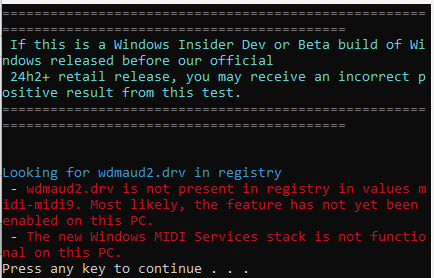
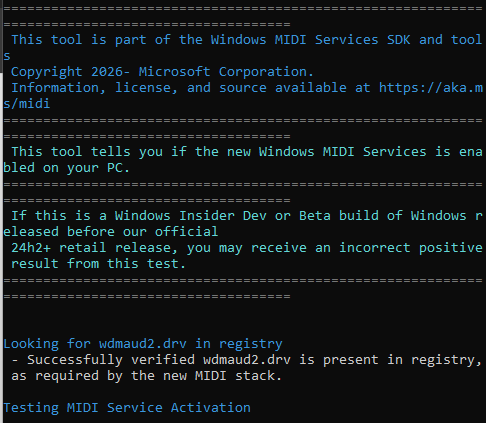
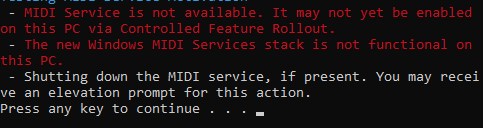
The best thing to do is download the program that tests for the new Windows MIDI stack. My understanding is that the new code was distributed to systems over time, so I don’t know if my specific KB that triggered it is universal.
If the test program has the new stack, then you have the problem. No public release of the fix exists; it’s a developers’ beta that requires your PC to be in Developer Mode to install AND to run. (Learned that the hard way when I disabled Developer Mode after everything was working!)
The Discord thread includes links for both the test program and the developer’s beta.
FYI. I booted up my Win11 PC and nothing midi USB would work. Both Cantabile and TriplePlay were blue wheel of death IF a USB midi device was plugged in. If no USB device, then the Cantabile onscreen keyboard worked fine when Cantabile started. Sure enough, I had installed KB5079473 on 3/11/26. When I uninstalled that update, all seems to work. And damn, that’s a big updated to install and remove. That’s my correlation: Install KB5079473 and USB Midi Fails. Uninstall KB5079473 and USB midi works. There was also an update today (KB5077181), but I had removed the KB5079473 before I noticed that. Maybe one broke the other, IDK. They seem to be poking around under the hood…
Update. Not sure if @The_Elf is responding to me, but I also had to uninstall KB5077181 which was installed today. All seems well again.
Further Update: After Uninstalling previous updates (I did not run this before uninstalling… Wish I had):
And printer is working again. Note that the first re-install failed FWIW. Tried a MidiUSB device (Fishman) and both Cantabile and Fishman TriplePlay Utility worked.
Ran midicheckservice and still not showing new? service working, but could stop/start midi with net stop/start midisrv. And USB midi and printer is working. All I can guess is the new midi service is installed, but not working. Old midi must be working.
I think I’ll quit while I’m ahead! I do not understand why this crap has to happen.
It’s not enough to just have the checker program to tell you if you’ve been updated to the new stack. Once you can see that you have been updated you need the MIDI Settings app - without that you will be flying blind.
I had various problems and tried everything to solve them, but without success. Then I gave up, downloaded the latest Windows 11 ISO, and ran a Windows repair installation. That didn’t take long, and when it was finished, all the problems were solved… I should have done that much sooner. It was a piece of cake, and I now have a clean system without losing any data.
I wanted to be able to stop/start the MIDI Services from a convenient Stream Deck button, so with a little research I came up with this:
Create a batch file (I named it ‘Restart MIDI Services.bat’) and put in it the following commands:
net stop midisrv
timeout /t 30
net start midisrv
The timeout creates a 30 second delay between starting and stopping MIDI. Maybe that’s excessive, so feel free to experiment with this.
Now we need to execute the batch file ‘as Administrator’. Microsoft want to save us from ourselves so much that they make this difficult (sigh…). The ‘run as a shortcut with admin privilege’ trick doesn’t work, since Stream Deck, in its own infinite wisdom (sigh…), decides to resolve shortcuts to the target file.
So add an ‘Open’ button to the SD, and give it this command in the App/File box:
powershell -Command “Start-Process ‘C:\Users\the location of your batch file\Restart MIDI Services.bat’ -Verb RunAs”
This worked for me. Please let me know here if it works for you.
Update: there is a preview fix out that addresses the virtual ports issues - seems to work now without having to re-start MIDI services.
If you’re in the Discord group, you should be able to get to the relevant message directy with this link, otherwise (or if the link doesn’t work) navigate to the Developers section in the Discord group, and there use the channel “early-preview-releases”. The newest post lets you download the updated preview.
If you have installed a previous KSA preview, you’ll need to uninstall it - see Pete Brown’s post.
Definitely worth trying if you don’t mind developer mode on your PC…
I was getting fed up of having Cubase report missing MIDI ports to me, so I consulted with a pair of friends, and between us we came up with a couple of Powershell scripts and Stream Deck buttons to do the following:
Capture the names of all the current active MIDI ports and make this a ‘master list’. This assumes you have everything working right now.
Compare the ‘master list’ with the current active ports and report any that are missing.
The ‘capture master list’ backs up the previous master list and then overwrites it.
I placed all of this stuff in my ‘OneDrive\Documents\MIDI Check’ folder, but you can change that as long as you also change the references in the information below.
Use any of this at your own risk.
Here is the ‘capture_midi.ps1’ script:
# 1. Define Paths
$FolderPath = "C:\Users\<your user name>\OneDrive\Documents\MIDI Check"
$MasterFile = "$FolderPath\midi_master.txt"
$PrevFile   = "$FolderPath\midi_master_prev.txt"
$ScanFile   = "$FolderPath\latest_midi_scan.txt"

Write-Host "Starting MIDI Backup and Scan..." -ForegroundColor Cyan

# 2. Automatically backup the old Master List
if (Test-Path $MasterFile) {
    Copy-Item -Path $MasterFile -Destination $PrevFile -Force
    Write-Host "Old master list backed up to midi_master_prev.txt" -ForegroundColor Gray
}

# 3. Scan for MIDI gear (using our refined 'short' filter)
$MidiOnly = Get-PnpDevice -Status OK | Where-Object {
    $_.FriendlyName -like "*MIDI*" -or
    $_.Class -eq "MidiDevices" -or
    ($_.Class -eq "Media" -and $_.FriendlyName -notmatch "Realtek|Speakers|Microphone")
} | Select-Object -ExpandProperty FriendlyName | Sort-Object -Unique

# 4. Save to BOTH the raw scan and overwrite the main master list
$MidiOnly | Out-File $ScanFile
$MidiOnly | Out-File $MasterFile

Clear-Host
Write-Host "--- MIDI REFRESH COMPLETE ---" -ForegroundColor Green
Write-Host "Found $($MidiOnly.Count) MIDI-related entries."
Write-Host "Your 'midi_master.txt' has been updated." -ForegroundColor Yellow

# 5. Open the folder so you can see the files
Invoke-Item $FolderPath

Write-Host "`n[Press any key to close]"
==
And here is the ‘check_midi.ps1’ script:
$MasterFile = "C:\Users\<your user name>\OneDrive\Documents\MIDI Check\midi_master.txt"
$AllActiveHardware = Get-PnpDevice -Status OK | Select-Object -ExpandProperty FriendlyName

if (Test-Path $MasterFile) {
    $MyGear = Get-Content $MasterFile | Where-Object { $_ -match "\S" } | ForEach-Object { $_.Trim() }
} else {
    Write-Host "Master List not found at $MasterFile" -ForegroundColor Red; pause; exit
}

$MissingGear = New-Object System.Collections.Generic.List[string]

foreach ($desired in $MyGear) {
    $found = $AllActiveHardware | Where-Object { $_ -like "*$desired*" }
    if (-not $found) { $MissingGear.Add($desired) }
}

Clear-Host
if ($MissingGear.Count -gt 0) {
    Write-Host "--- STUDIO CHECK: MISSING GEAR ---" -ForegroundColor Yellow
    foreach ($item in $MissingGear) { Write-Host "[X] $item" -ForegroundColor Red }
} else {
    Write-Host "--- STUDIO CHECK: ALL SYSTEMS GO ---" -ForegroundColor Green
    Write-Host "All $($MyGear.Count) devices are verified."
}
Write-Host "`n[Press any key to close]"
==
And here is the ‘Capture’ Stream Deck button ‘Open’ App/File command: cmd.exe /k powershell.exe -ExecutionPolicy Bypass -File "C:\Users\<your user name>\OneDrive\Documents\MIDI Check\capture_midi.ps1"
And the ‘Check’ Stream Deck button ‘Open’ App/File command: cmd.exe /k powershell.exe -ExecutionPolicy Bypass -File "C:\Users\<your user name>\OneDrive\Documents\MIDI Check\check_midi.ps1"
 In order to load the test update, your PC must be in Developer Mode.