As above, I tried Edge, Chrome and Firefox. Same result each time. As soon as the connection is made to the server the text appears.
Sorry, I forgot about your previous reply regarding having already tried several browsers.
I am at a loss then.
Maybe one for @brad to comment on as, thinking about it, I guess it is the media server generating that information. Maybe it needs to detect the browser being in full screen mode and it is missing the switch for some reason?
Grateful for all your input. Thank you.
I’m out of ideas. I’ve tried every browser I know, and they all do the same thing. That text seems to be part of the web page, so is being generated by the Media Server. Maybe I need to set something in the Media Server’s config.json, or add a command line option to tell it not to show that text?
It’s as if that ‘Full-Screen’ button is simply switching the browser’s full screen option - and I’m not sure that’s what it’s meant to be doing?
It feels such a shame to get this far and yet be scuppered by something so silly.
Hopefully @Brad will have some ideas on this.
Just to be clear, that text and the full screen button will always appear when you first navigate to the media server in a browser. It’s not until you hit the full screen button that the video is full screened and the text and button disappear. And… you must use the on-screen full-screen button, not the browser’s full screen mode for that to work correctly.
That said, you can also force the text/button to be hidden by appending #no-controls=1 to the url eg: http://localhost:3000#no-controls=1. See this part of the docs for more.
If neither of the above helps, perhaps send me a video showing the problem and I’ll see if I can figure out what’s going on.
The ‘Full-Screen’ button puts the browser into full screen, but the text remains. It seems to be doing exactly the same as using the browser’s own full screen option.
Biut I will try adding that parameter to the URL and see what happens…
Thanks @Brad.
Hooray! That parameter added to the URL fixes it!
The ‘–start-fullscreen’ parameter doesn’t work - at least not on my laptop with Firefox. It seems to be just ignored. Fortunately the ‘-kiosk’ parameter for the browser does work.
So my start-up batch file command reads as:
“C:\Program Files\Mozilla Firefox\firefox.exe” -kiosk localhost:3000#no-controls=1
This now seems to be working as it should.
I have a rehearsal today, so I need to rustle up a MIDI connection and test the whole thing.
A new problem, seemingly with the config.json file…
“midiPort”: “rtpMIDIHP” works fine, But I won’t have a network connection at the gig, so I can’t use this.
“midiPort”: “USB Midi” crashes the Media Server. The error message says that the port doesn’t exist. But Media Server reports it when I do a ‘–list-midi-devices’.
“midiPort”: “USB Midi Interface” also crashes the server. Same error.
I’m really hoping that it isn’t the spaces in the name causing the problem, as all my available interfaces have spaces in their names.
I tried creating ports in loopMIDI and running Media Server with them named in the config.json… Ports without spaces in their names work - ports with spaces in their names fail.
Ah, you reminded me to check my guide, and my --verbose had been autocorrected by Word to –verbose.
So I have now corrected that.
So are you using –start-fullscreen or --start-fullscreen?
No problem with spaces in MIDI ports on my system
Ah, so my bad. I broke something when I added “no-controls” flag. It should be fixed now so if you re-install you should be able to just use the full-screen button and not need the no-controls flag any more. Or, you can keep using it - up to you.
Great.
That’s right - the --start-fullscreen is specific to Chrome/Edge.
Are you sure you’re typing the port name exactly correctly?
What error is displayed when the media server crashes?
Can you post a copy of the relevant section of your config file and the output of --list-midi-devices?
Brad
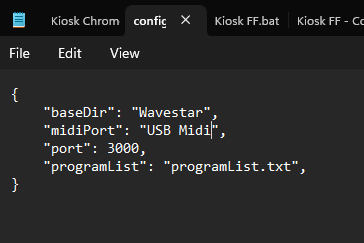
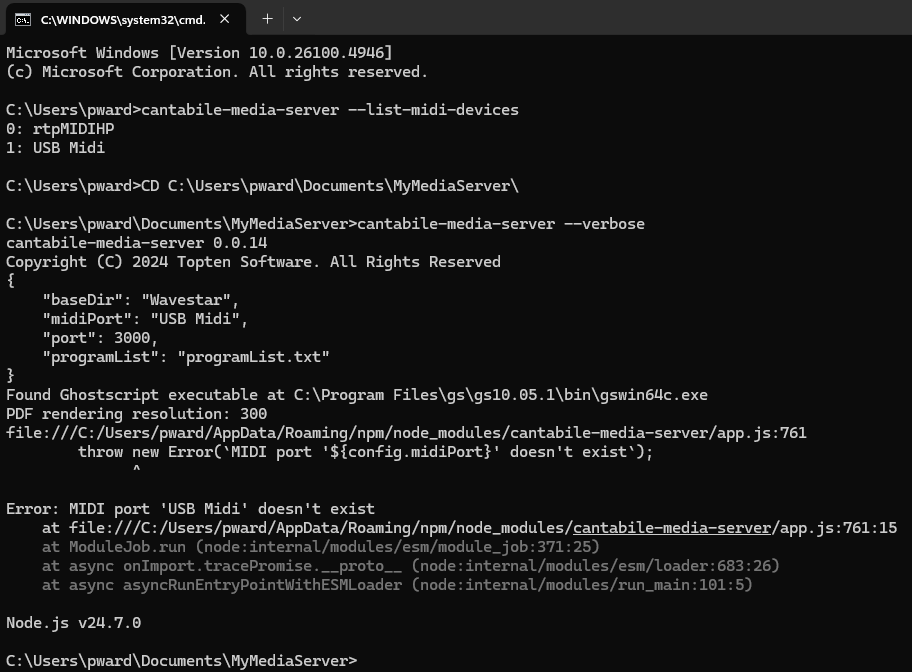
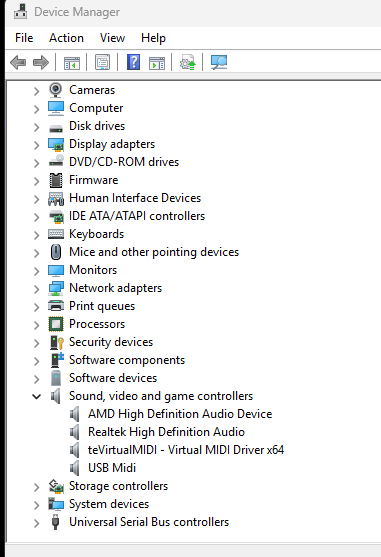
Very weird. I wonder if the port name has spaces on the end or something that you can’t see and causing the name to mismatch.
You can also specify the MIDI device by number. Try changing the config to:
"midiPort": 1
Note: no quotes in this case.
I’ll make some changes tomorrow to try and debug why the name isn’t working.
Yes, designating midiPort as 1 fixes the problem. No missing port error and everything seems to work as expected.
1 Like
Hi @The_Elf
I’m glad using the device number worked. That’ll get you going but you may need to update it if you install/remove other MIDI devices. Better to use the name… if we can figure out why it’s not working.
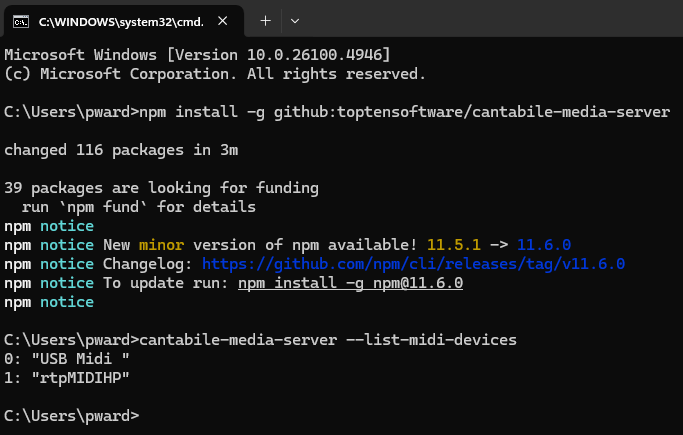
I’ve just made a small change to the --list-midi-devices command to include quotes around the MIDI device names so we can determine if there are leading/trailing spaces causing the name not to match.
Would you mind installing the latest version and posting the output of the MIDI device list again.
To update, re-run the install command:
npm install -g github:toptensoftware/cantabile-media-server
Then list devices:
cantabile-media-server --list-midi-devices
Brad
1 Like
Looks like your theory of something going on at the end of the name is upheld. Also shows that referring to the ports by number is problematical, as they’ve swapped.

1 Like
Hi @The_Elf
Thanks for confirming that. I’ve just put up a new version that trims leading/trailing spaces so try installing that and setting the config back to:
"midiPort": "USB Midi",
Hopefully that will sort it out.
Brad
2 Likes
Yes, that’s working fine now. Phew! It’s been quite a journey.
Much appreciation for the excellent and prompt assistance.
3 Likes
Hopefully worth the pain for what is a really flexible media server.
2 Likes
Thank you @Derek.
It certainly does the simple job I need. I can see that it does so much more, though most of it baffles me right now. Maybe when time allows I will see what else I can achieve for the future.
2 Likes