Hi All,
This is an extension to a very lively discussion in 2019 regarding scrolling show notes at this link:
I have been holding back on releasing this rack due to refining and testing for quite a while and recent tab & view developments led me to re-working and hopefully improving and simplifying using the rack.
The discussion had a lot of suggestions on how to add it to Cantabile including adding a scroll engine & SongBook type commands that could be added to show notes for tempo, pausing etc. Torsten Ecke has a more sophisticated set of commands in his app liveprompter which is for Android type pads and has more precision than SongBook as a result. Also discussed was auto-location for lyrics or other that synced with the master music track that was playing.
It got back burnered for a lot of reasons and we all carried on. I got to re-reading it and trying to put all the wish list in perspective from the current state of our specialized tech we do. The base requirements I came up with were
- must be able to scroll down or up
- must have speed control or a duration of track adjustment for setting the scroll pace
- must be able to pause
- must be able to set markers for pausing or speed changes
- must be able to auto-locate for cueing purposes in rehearsals and practicing
The already discussed apps like SongBook and Liveprompter have their own scroll engines based on song duration with Torsten’s app providing fine adjusted scroll timing that is variable over the course of the scrolling and other commands for pausing, jumping up or down and other location operations but neither have true synced auto-location as far as I know. The tablet based and any possible show notes implementation also have to consider the size of the type or print when developing the script commands and pacing so each song has it’s own unique commands in it.
So with all this in mind I considered the question of ‘how easy can I make this task to do with Cantabile Show Notes and have a reliable outcome’. I came to the conclusion that the scripting method was not the way I wanted to go because the support isn’t there at this time and Cantabile has no discreet scrolling mechanism. So I chose a similar path to my dated designs using a media player as the final destination for a MIDI file that held the location data of the Show Notes positions that were recorded by a rack creation that used a discreet engine to provide the scrolling position data.
This led to the shared rack I am providing at the end of this long post which holds the technical description and instructions for use. The general use idea is to load your audio track into a song level media player and set it to Master sync mode. All the recording and loading of the resultant file are explained below. I hope you enjoy it!
To begin with the rack description, it uses Kevin Hamlen’s Smoothie VST3 as the motion engine. By using Cantabile value sliders, buttons and bindings system I constructed a rack around the Smoothie VST that allowed me to control the speed, control the input value, switch the input value to full value or zero value to enable automatic scrolling of the Show Notes view in Cantabile.
I built the rack so it can be used manually via MIDI controllers in real time. It can also record a MIDI track track that holds the interpolated Smoothie output slider position data (for the record Smoothie generates perfectly smooth curves with no sampling) that is bound to the Show Notes position. The interpolated data is recorded to a MIDI track as a CC Fine stream of values with a resolution of 10000 steps. This method produced low jitter scrolling at a wide range of speeds. This scroll position method has the advantage of being able to slave sync it to the Master media player at song level so when using the timeline you can Rewind and FF and use the position pointer and the scroll track will stay in sync.
Since there are now tabs in Cantabile it also changed the requirements for the rack because it needed to arbitrarily determine which view to use for the scrolled display because some people might want to scroll a split view display. I chose the Primary (upper or Left) pane for the Show Notes pane. It allowed me to place the opened scroll control rack in the lower pane and use the controls I made from custom buttons and bindings to perform the tasks of the rack while observing the show note scrolling action. I also made some controller bars that might be desired if you are going full screen when doing the track position recordings. You can operate the rack functions from either source.
I am going to show how to install the rack and make a scroll track for the backing audio in the Master media Player at song level. The MIDI track player is in the rack and is slaved to the Master. Since the size of the text will vary from machine display to the next I assumed that one might have to make a few different position recordings of the same notes (if you changed the font size) so I attempted to make doing so easy and fast.
Step One is to have your song loaded with a Media Player at song level for the Audio track and have it set to Master for sync mode. Also the smoothie scroll rack needs to be loaded and the input route to it should be set to Source = Onscreen Keyboard. I assume you have the controller bar imported in if you want to use it but if not all the functions of it are available in the rack editor.

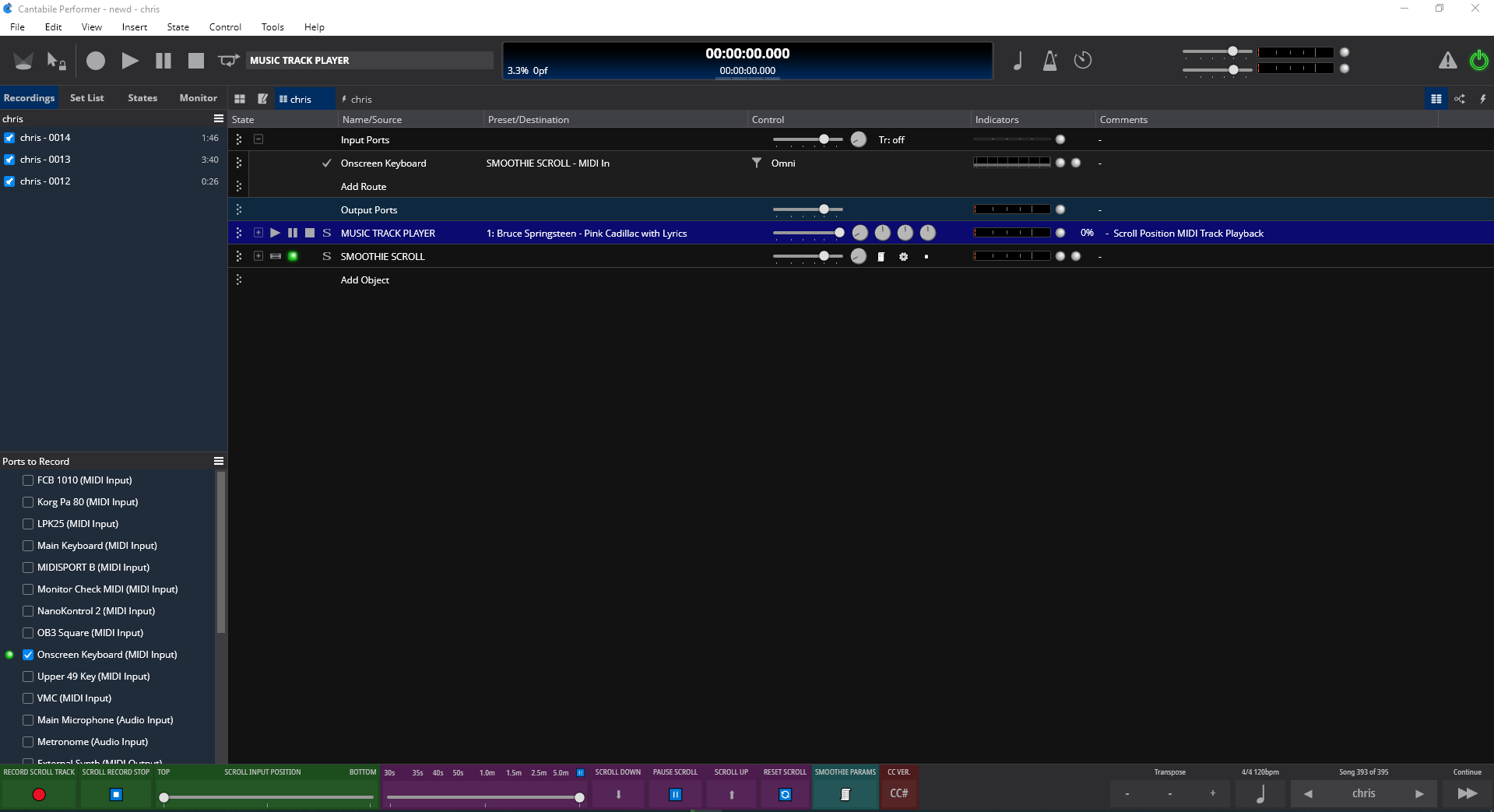
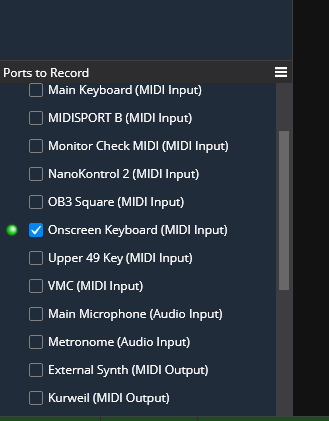
On the left the recording pane is open in the pic directly above. Below it you see in the recording ports that the Onscreen keyboard is selected. It should be the only port selected when making recordings for the scroll. Also check the location of the files so you can locate them later in the slave media player in the rack.
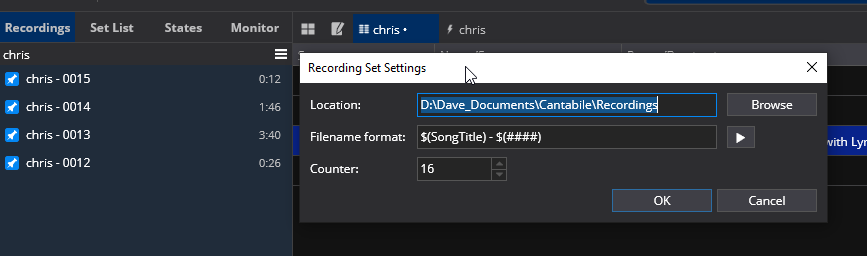
The next thing to do is open the rack for editing in the routing table view and move it to the lower panel.
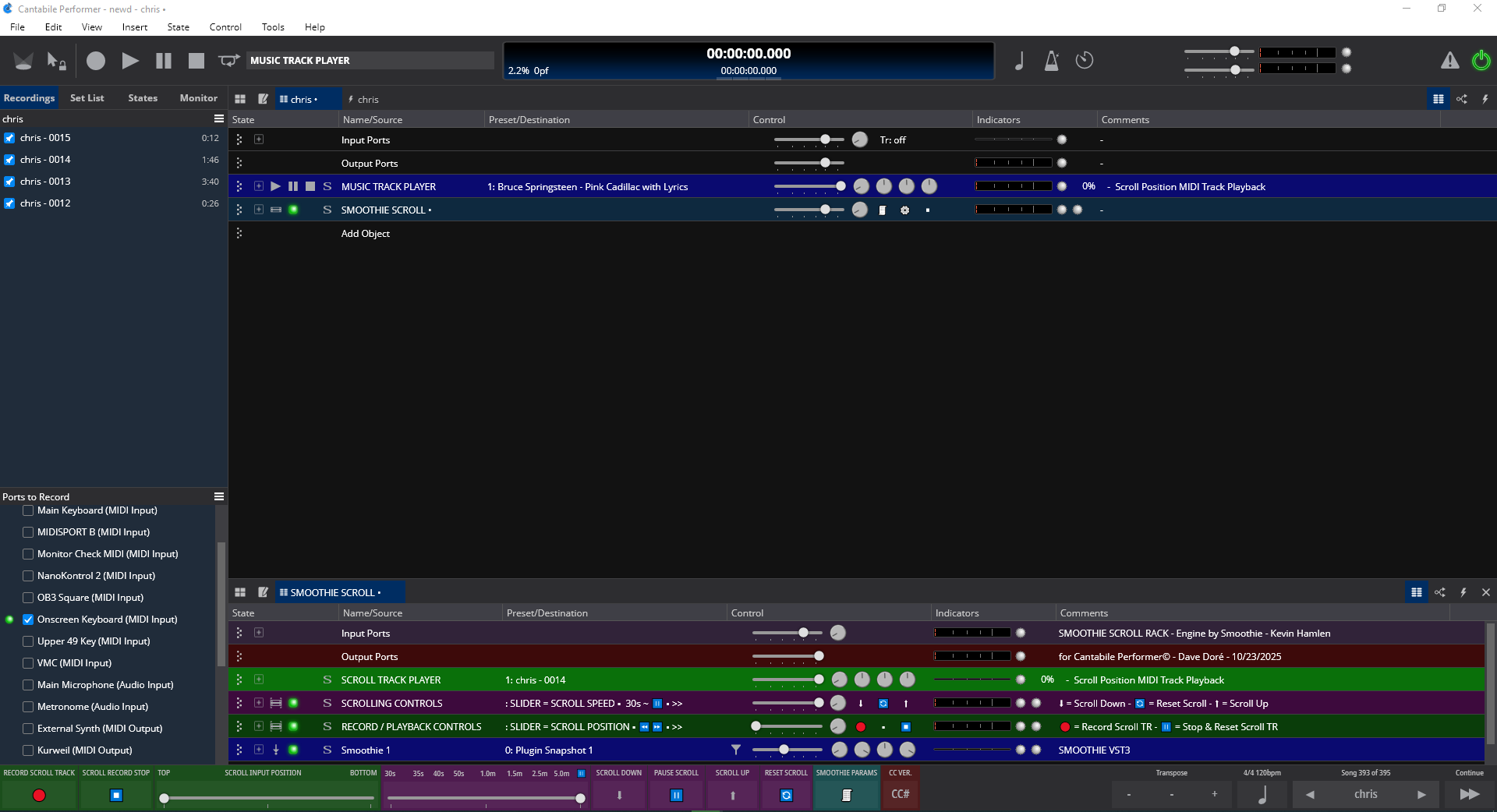
Set up the split view with the show notes to scroll on top and the control rack opened in editor mode ready to use. You can also hit the Reset Scroll button and it with open show notes in the top pane.
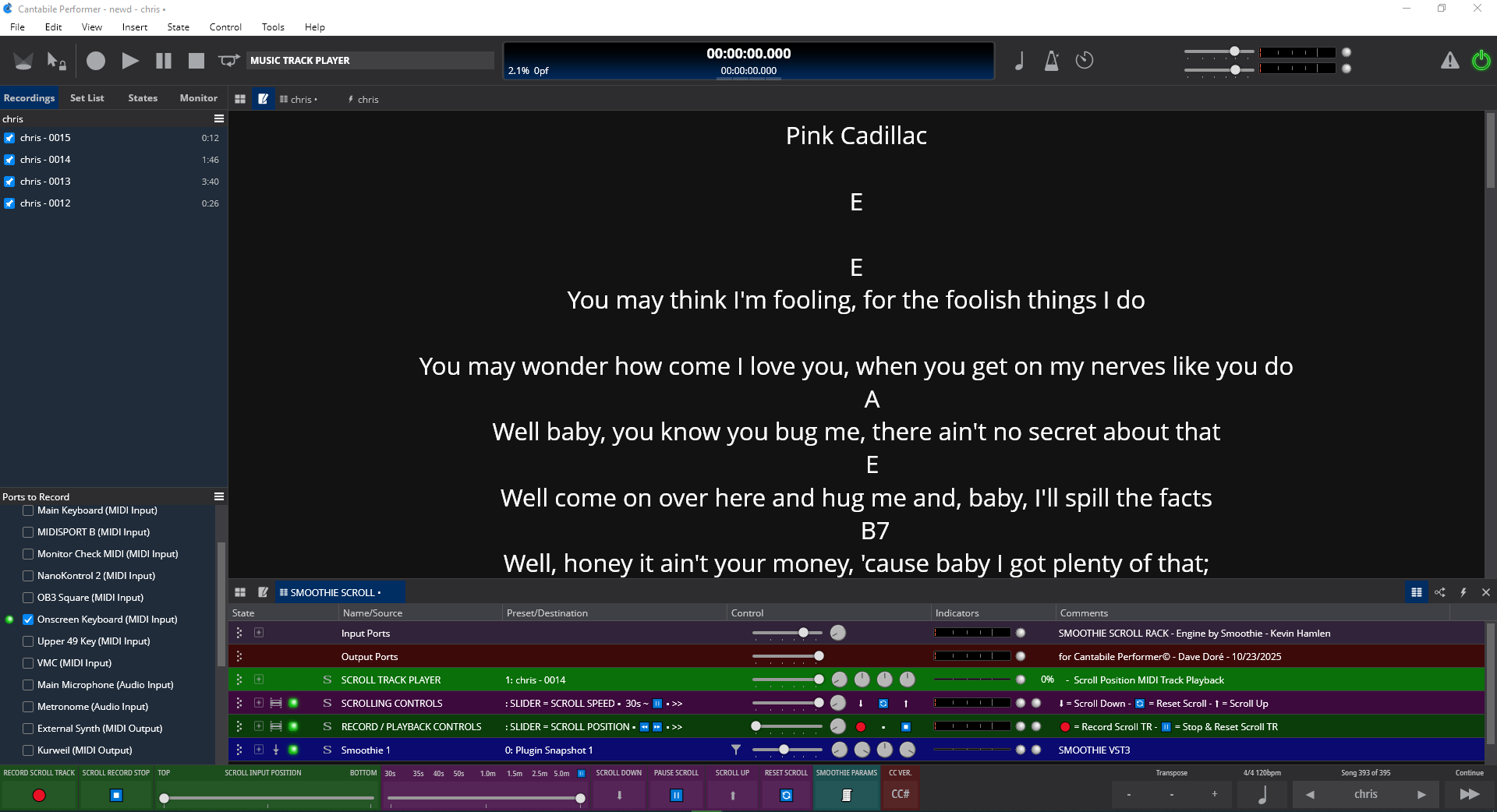
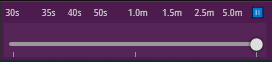
Note that the controller bar buttons and the rack buttons have the same icons. The embedded rack labeled Scrolling Controls has it’s gain slider bound to the 1st speed control adjustment slider for the Smoothie plugin. When all the way to the left it is set to complete a top to bottom scroll in 30 seconds. When all the way to the right or max gain the speed is at 0 or paused.

For an idea of the time range of the slider observe the control bar gradient I made for it’s duplicate slider. In SongBook terms this where you would set the length of the audio track.
The 3 custom buttons to the right of the slider consecutively are scroll down  , reset scroll to top
  and scroll up
  .
.

On the embedded rack directly below it there is a similar use of the slider and custom buttons. The slider is an alternative way to set the input value to the smoothie and behaves as an expression pedal would meaning the far left would be the top of the notes and the far right the bottom. If you only go a partial amount it will pause where you left the slider and if you go the opposite direction at that point the scroll will reverse direction. It acts independent of and can override (and be overridden by) the up and down scroll buttons which in effect send a 0 for scroll up and a 1 for scroll down to the Smoothie VST.

The buttons consecutively are  for record the scroll track,
  for unused and
  for stop the recording and reset for another.

All these controls are replicated in a larger form in the control bar with the addition of a pause button that literally toggles the suspension of the Smoothie VST. You can also pause using the slider for speed by pulling it all the way right.

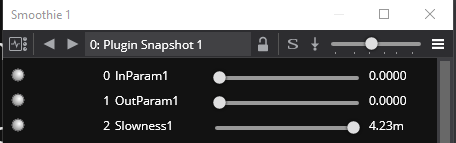
The  button opens the Smoothie parameters editor if you want to view the higher resolution readout of the interpolated value for the slowness control when setting it. The final button is just a label for the type of controller bar.
All the scrolling controls are available for real time use via MIDI switches, sliders and pedals independent of the recording section.
To make a recording of the scrolling of the show notes that you create with the various controls and the Smoothie plugin you begin by setting the approximate speed with the either speed slider. If you wish to reset the controls for a new recording you can press the stop scroll record button.
Next press either record button I’ve shown. This resets the scroll control for the slider in the rack and control bar to the top position or all the way left, starts the master transport which is set to the Main song master media player and starts the recorder.
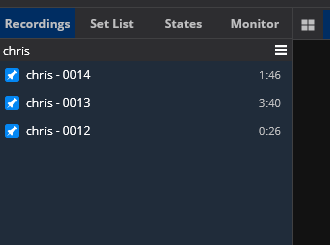
Now you can either press the down arrow button to start the scrolling or move the input position slider to the right to begin the scroll. While listening to the track use the speed, pause and direction (if you overshoot a little) controls to keep the scrolling lyrics in focus. Pause on solos if needed. When the master track ends the recorder is stopped and the MIDI file is shown in the recording pane. Note this file name.
Go to the rack media player and open it to add a file. It is slaved to the master media player at song level and the state behaviors are set for the file selection to be saved with the song file.
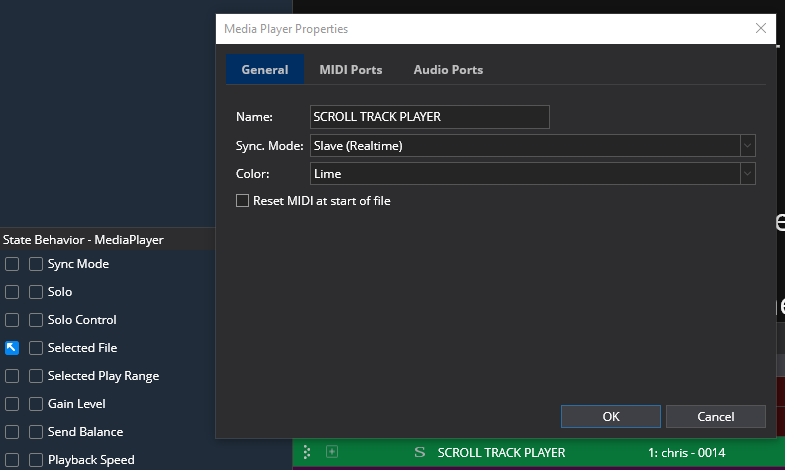
Navigate to the recordings folder you used for your recording set and load the MIDI file into the active slot of the player.

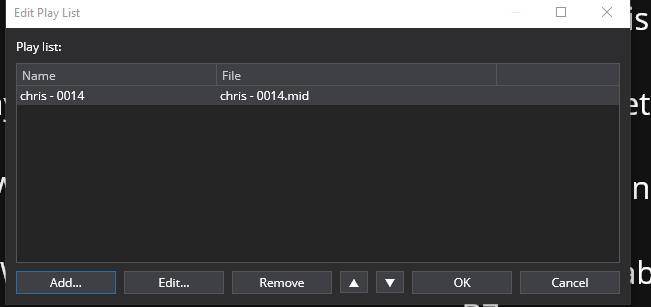

You are now done with the creation process. To test the track you press play on the main transport, on the master media player transport or on the timeline transport. The track will play back the movement of the show notes scroll position as recorded over the timeline of the song length along with the audio track. It will stay in sync when re-positioned, rewound or fast forwarded using the timeline view pane. if you have an error and wish to try again just press the stop scroll recording button and you will be ready to make another recording.
Here is the version of the rack that creates a position track as described. You need Kevin’s Smoothie VST3 plugin for it all to work.
SMOOTHIE SCROLL.cantabileRack (86.6 KB)
Custom Controller Bar
SMOOTHIE Show Notes Scroller Control Bar.zip (924 Bytes)
If a video is needed let me know otherwise have fun with it and any feedback is welcome.
Cheers!
Dave
